Accessibility tools
Target size
- Last reviewed
- 13 August 2026
Check whether interactive elements are large enough and spaced appropriately.
What you can test
This tool can help you identify potential accessibility barriers that may affect people with:
How to use
Drag the Target size link to your bookmark bar to install the tool.
Once installed, visit a webpage and select the tool in your bookmark bar.
When you have run the check, a pop-up will appear to tell you how many overlapping controls appear on the screen.
A visual 24 x 24 pixel circle will be shown from the centre of the bounding box of the control.
- Blue circle - shows the control is undersized, check if the boundary box circles intersect with another control
- Green circle - shows controls that are at least 24 x 24 pixels and therefore pass
Meeting WCAG
Target size was introduced in the WCAG (Web Content Accessibility Guidelines) 2.2 update as criterion 2.5.8.
By ensuring that all relevant controls meet the 24 × 24 pixel size requirement, you can help users who may struggle with precise movements, have limited dexterity or even some eye conditions to access the correct controls.
Although there are exceptions to this rule, Target size takes all exceptions into account and will give you a visual indication of which controls pass or fail and for what reason.
Example of using target size
Below is an example of the bookmarklet being used on Get Into Teaching.
Before
This is a screenshot showing a navigation bar with the links 'Is teaching right for me?' and 'How to become a teacher.'

View larger image in a new tab
After
This is a screenshot showing a navigation bar with the links 'Is teaching right for me?' and 'How to become a teacher,' with a green circle on the links.
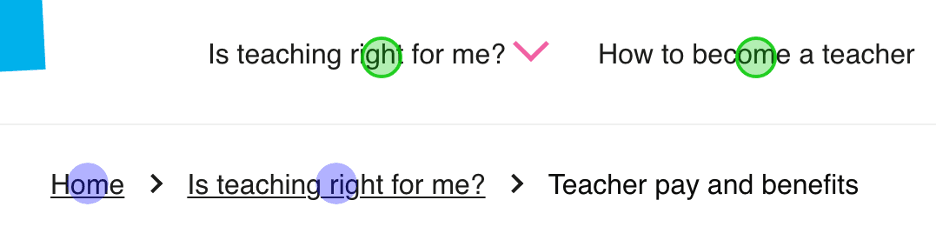
View larger image in a new tab
Fixing target size issues
When you run the target size tool, you might see that some elements on a product or webpage are too small. This can cause the blue bounding circle to overlap with other elements.
To fix this, you could either:
- increase the pixel size of your element to ensure it meets the 24 × 24 minimum
- provide further spacing between elements to ensure that bounding circles no longer meet
Example of undersized elements
This is a screenshot showing 8 x 8 pixel elements, undersized and intersecting.

Example of elements with correct sizing
This is a screenshot of the same element increased to 24 x 24 pixel elements. This now meets the minimum requirements.